


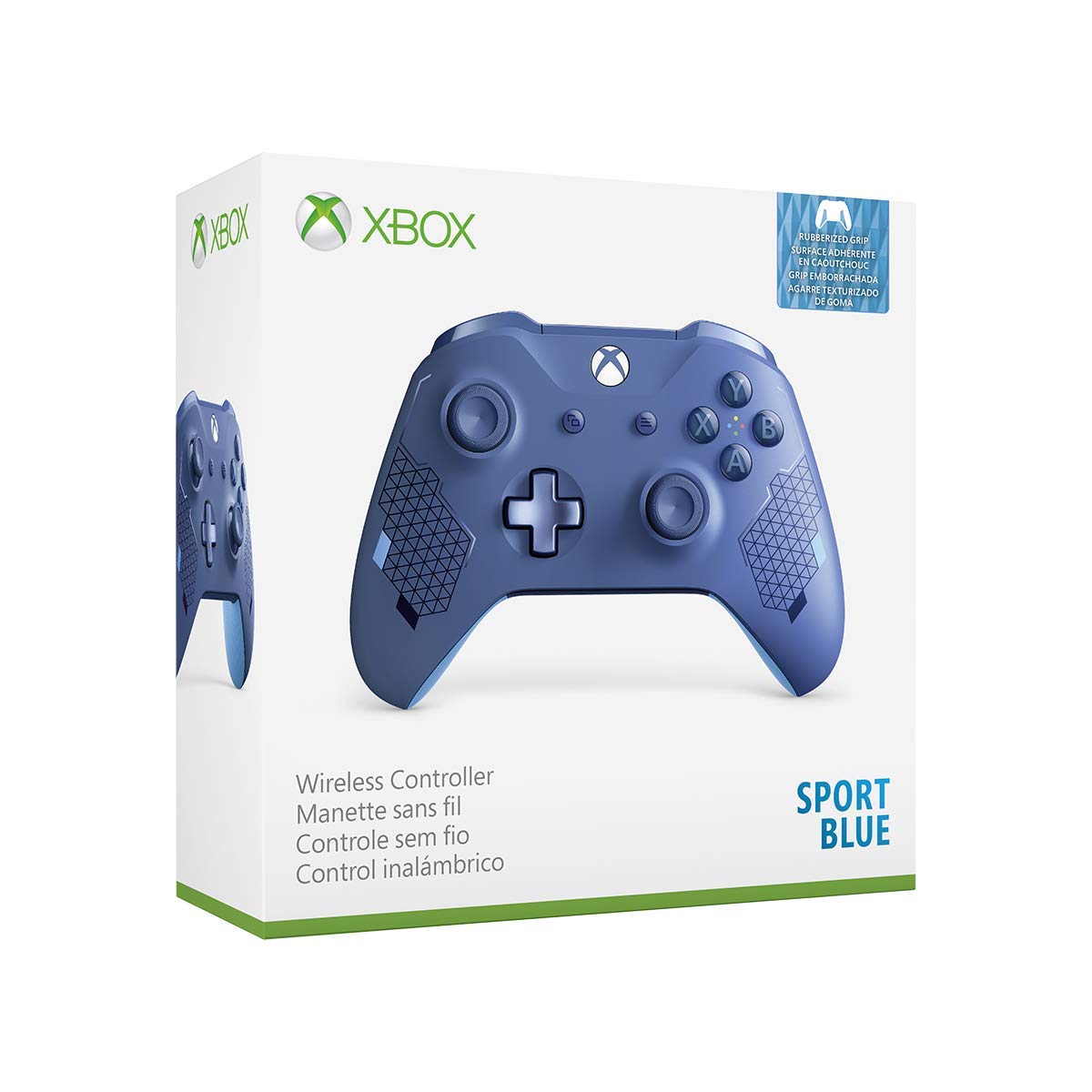
Xbox Wireless Controller - Sport Blue Special Edition, WL3-00145, Blue Color
Xbox Wireless Controller - Sport Blue Special Edition, WL3-00145, Blue Color
Out of stock
Couldn't load pickup availability
Guarantee safe checkout

Sold by Gamex24, an authorized reseller.
Returns accepted within 30 days | support@gamex24.com
Shipping Information
- Free Standard Shipping — United States only
- Processing Time: 1–3 business days
- Estimated Delivery: 3–5 business days after dispatch
- Securely packed to ensure your purchase arrives in perfect condition
- Tracking number sent via email once dispatched
- Orders over $250 require signature upon delivery. Taxes calculated at checkout.
Returns & Refund
Returns accepted within 30 days of delivery.
Damaged or Defective Item
Free return shipping + replacement or full refund
Wrong Item Received
Free return shipping + replacement or full refund
Change of Mind
Return shipping at customer's expense · Item must be unused & in original packaging
Safety & Compliance
California Proposition 65 Warning
Some products sold on this website may expose you to chemicals known to the State of California to cause cancer, birth defects, or other reproductive harm.
www.P65Warnings.ca.govGeneral Product Safety Advisory
Always read the product label, instructions, and safety warnings before use. Do not use damaged or modified products. Store products in appropriate conditions as specified by the manufacturer.
Keep all products out of reach of children unless specifically designed for their use.
Product Authenticity & Notice
All products sold by Gamex24 are 100% authentic, sourced directly from authorized brand distributors. Product colors and dimensions may vary slightly from images due to screen calibration and manufacturing tolerances.
Gamex24 — Play. Compete. Repeat.


Description
Frequently Asked Questions
- Q: What are the dimensions of the Xbox Wireless Controller? A: The Xbox Wireless Controller measures approximately three point nine four inches in length, seven point eight seven inches in width, and seven point zero nine inches in height.
- Q: What color is the Xbox Wireless Controller? A: The Xbox Wireless Controller is a vibrant blue color, featuring metallic accents that enhance its design.
- Q: What is the model number of this controller? A: The model number of this controller is WL3-00145, making it easy to identify.
- Q: How do I connect the Xbox Wireless Controller to my PC? A: To connect the Xbox Wireless Controller to your PC, simply use Bluetooth technology or connect via a USB cable.
- Q: Is the Xbox Wireless Controller compatible with headsets? A: Yes, the controller includes a three point five millimeter stereo headset jack for connecting compatible headsets.
- Q: Can I customize the button mapping on this controller? A: Yes, the Xbox Wireless Controller allows for custom button mapping to suit your gaming preferences.
- Q: How do I clean the Xbox Wireless Controller? A: To clean the controller, use a soft cloth and mild cleaning solution; avoid getting moisture in any openings.
- Q: Is the Xbox Wireless Controller safe for children? A: Yes, the Xbox Wireless Controller is generally safe for children; however, parental supervision is recommended while gaming.
- Q: How should I store the Xbox Wireless Controller? A: Store the controller in a cool, dry place and avoid exposing it to extreme temperatures to maintain its condition.
- Q: Can I use the Xbox Wireless Controller on different devices? A: Yes, the controller is compatible with Windows ten PCs and tablets, thanks to its Bluetooth capability.
- Q: What is the warranty for the Xbox Wireless Controller? A: The Xbox Wireless Controller typically comes with a limited warranty; check with the retailer for specific details.
- Q: What if my Xbox Wireless Controller arrives damaged? A: If your controller arrives damaged, contact the retailer for their return policy and possible exchange options.
- Q: Is the Xbox Wireless Controller suitable for competitive gaming? A: Yes, the Xbox Wireless Controller's features, including customizable button mapping, make it suitable for competitive gaming.
- Q: What materials are used in the Xbox Wireless Controller? A: The Xbox Wireless Controller is primarily made of durable plastic, designed to withstand extensive use.
- Q: Does the Xbox Wireless Controller require batteries? A: Yes, the Xbox Wireless Controller operates on batteries, which can be replaced when depleted for continued use.
- Q: Can I connect multiple Xbox Wireless Controllers to one device? A: Yes, you can connect multiple Xbox Wireless Controllers to a single device, allowing for multiplayer gaming.