


LexonElec AK33 Portable Mechanical Gaming Keyboard, Hot-Swappable 82 Keys, Red Switch, White Backlit, Black PBT Keycaps
LexonElec AK33 Portable Mechanical Gaming Keyboard, Hot-Swappable 82 Keys, Red Switch, White Backlit, Black PBT Keycaps
Out of stock
Couldn't load pickup availability
Guarantee safe checkout

Sold by Gamex24, an authorized reseller.
Returns accepted within 30 days | support@gamex24.com
Shipping Information
- Free Standard Shipping — United States only
- Processing Time: 1–3 business days
- Estimated Delivery: 3–5 business days after dispatch
- Securely packed to ensure your purchase arrives in perfect condition
- Tracking number sent via email once dispatched
- Orders over $250 require signature upon delivery. Taxes calculated at checkout.
Returns & Refund
Returns accepted within 30 days of delivery.
Damaged or Defective Item
Free return shipping + replacement or full refund
Wrong Item Received
Free return shipping + replacement or full refund
Change of Mind
Return shipping at customer's expense · Item must be unused & in original packaging
Safety & Compliance
California Proposition 65 Warning
Some products sold on this website may expose you to chemicals known to the State of California to cause cancer, birth defects, or other reproductive harm.
www.P65Warnings.ca.govGeneral Product Safety Advisory
Always read the product label, instructions, and safety warnings before use. Do not use damaged or modified products. Store products in appropriate conditions as specified by the manufacturer.
Keep all products out of reach of children unless specifically designed for their use.
Product Authenticity & Notice
All products sold by Gamex24 are 100% authentic, sourced directly from authorized brand distributors. Product colors and dimensions may vary slightly from images due to screen calibration and manufacturing tolerances.
Gamex24 — Play. Compete. Repeat.


Description
Frequently Asked Questions
- Q: What are the dimensions of the LexonElec Portable Mechanical Gaming Keyboard? A: The dimensions are twelve point zero one inches in length, four point six nine inches in width, and one point four two inches in height.
- Q: What type of switches does the keyboard use? A: This keyboard uses Red switches, known for their quiet feedback and tactile feel, making it suitable for both gaming and typing.
- Q: How many keys does this keyboard have? A: The keyboard features eighty-two keys, designed in a compact layout for minimal desk space.
- Q: Is this keyboard compatible with Mac and Windows? A: Yes, the keyboard is compatible with both Windows and Mac operating systems, making it versatile for different users.
- Q: What materials are the keycaps made from? A: The keycaps are made from PBT, which is known for its durability and resistance to wear.
- Q: How do I change the key switches on this keyboard? A: You can change the key switches easily due to the hot-swappable PCB, allowing you to replace two-pin switches without soldering.
- Q: Does this keyboard have backlighting options? A: Yes, the keyboard has white LED backlighting with eight dynamic modes and adjustable brightness levels.
- Q: Is this keyboard suitable for FPS gaming? A: Yes, its compact design and anti-ghosting feature allow for multiple key presses simultaneously, which is ideal for FPS gaming.
- Q: How do I adjust the backlight brightness? A: You can adjust the backlight brightness using the FN + F8 keys, which provide four different brightness levels.
- Q: Can I use this keyboard for programming? A: Yes, the keyboard is suitable for programming, providing a responsive typing experience with its Red switches.
- Q: How should I clean the keyboard? A: To clean the keyboard, gently remove the keycaps and use a soft brush or cloth to clean the surface and key switches.
- Q: What should I do if the keyboard arrives damaged? A: If the keyboard arrives damaged, you should contact customer support for assistance with returns or replacements.
- Q: Is there a warranty for this keyboard? A: Yes, the keyboard typically comes with a warranty, details of which can be found in the user manual or on the manufacturer's website.
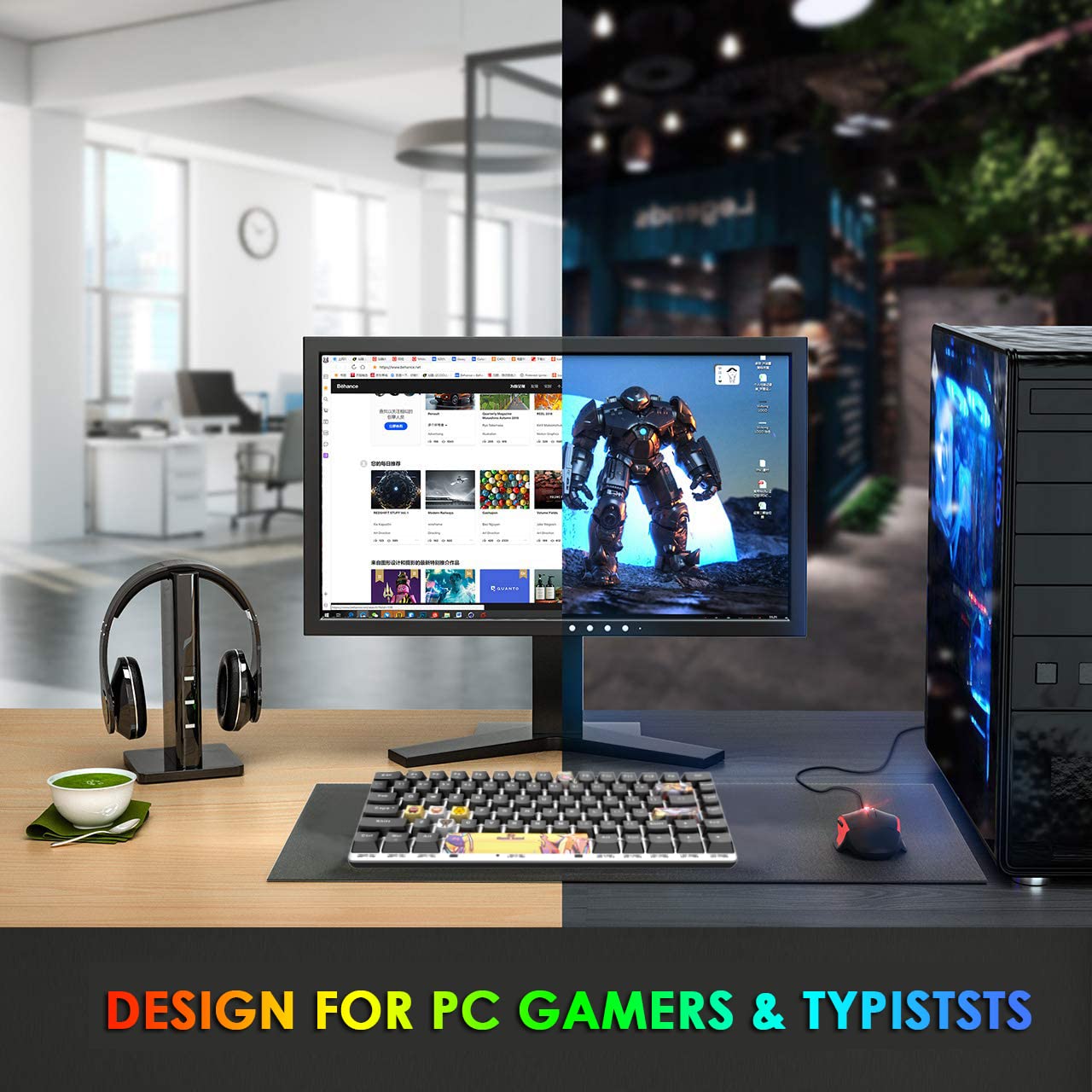
- Q: Can this keyboard be used for typing tasks as well as gaming? A: Yes, it is designed for both gaming and typing, providing a comfortable and responsive experience for all types of users.
- Q: What type of binding does the keyboard have? A: The keyboard is categorized under Personal Computers binding, indicating its suitability for PC use.