


Gamrombo LED Wireless Controller for PS5 - Dual Vibration, 3.5mm Audio Jack, 6-Axis Motion, Black
Gamrombo LED Wireless Controller for PS5 - Dual Vibration, 3.5mm Audio Jack, 6-Axis Motion, Black
Low stock: 10 left
Couldn't load pickup availability
Guarantee safe checkout

Sold by Gamex24, an authorized reseller.
Returns accepted within 30 days | support@gamex24.com
Shipping Information
- Free Standard Shipping — United States only
- Processing Time: 1–3 business days
- Estimated Delivery: 3–5 business days after dispatch
- Securely packed to ensure your purchase arrives in perfect condition
- Tracking number sent via email once dispatched
- Orders over $250 require signature upon delivery. Taxes calculated at checkout.
Returns & Refund
Returns accepted within 30 days of delivery.
Damaged or Defective Item
Free return shipping + replacement or full refund
Wrong Item Received
Free return shipping + replacement or full refund
Change of Mind
Return shipping at customer's expense · Item must be unused & in original packaging
Safety & Compliance
California Proposition 65 Warning
Some products sold on this website may expose you to chemicals known to the State of California to cause cancer, birth defects, or other reproductive harm.
www.P65Warnings.ca.govGeneral Product Safety Advisory
Always read the product label, instructions, and safety warnings before use. Do not use damaged or modified products. Store products in appropriate conditions as specified by the manufacturer.
Keep all products out of reach of children unless specifically designed for their use.
Product Authenticity & Notice
All products sold by Gamex24 are 100% authentic, sourced directly from authorized brand distributors. Product colors and dimensions may vary slightly from images due to screen calibration and manufacturing tolerances.
Gamex24 — Play. Compete. Repeat.


Description
Frequently Asked Questions
- Q: What is the color of the Gamrombo LED Wireless Controller? A: The controller is black. This sleek design fits well with the PS5 aesthetic and other gaming setups.
- Q: Does the controller have a built-in speaker? A: Yes, it features a built-in speaker. This adds an immersive sound experience while gaming.
- Q: What type of audio jack does this controller have? A: It has a three point five millimeter TRRS audio jack. This allows you to connect compatible headphones for audio.
- Q: How do I connect the controller to my PS5? A: You must use a USB-C cable for the initial connection. After connecting, press the Home button to activate it.
- Q: Is this controller compatible with Windows PCs? A: Yes, it's compatible with Windows PCs. This versatility allows for gaming beyond just the PS5 console.
- Q: Can I customize the colors of the controller? A: Yes, you can customize the colors. Press the Lighting button to switch colors and light effect modes easily.
- Q: What is the Turbo function on this controller? A: The Turbo function allows for up to ten presses per second. It supports programming for up to sixteen keys.
- Q: How do I wake up the PS5 console using the controller? A: Simply press the Home button on the controller. This feature makes it convenient to start gaming quickly.
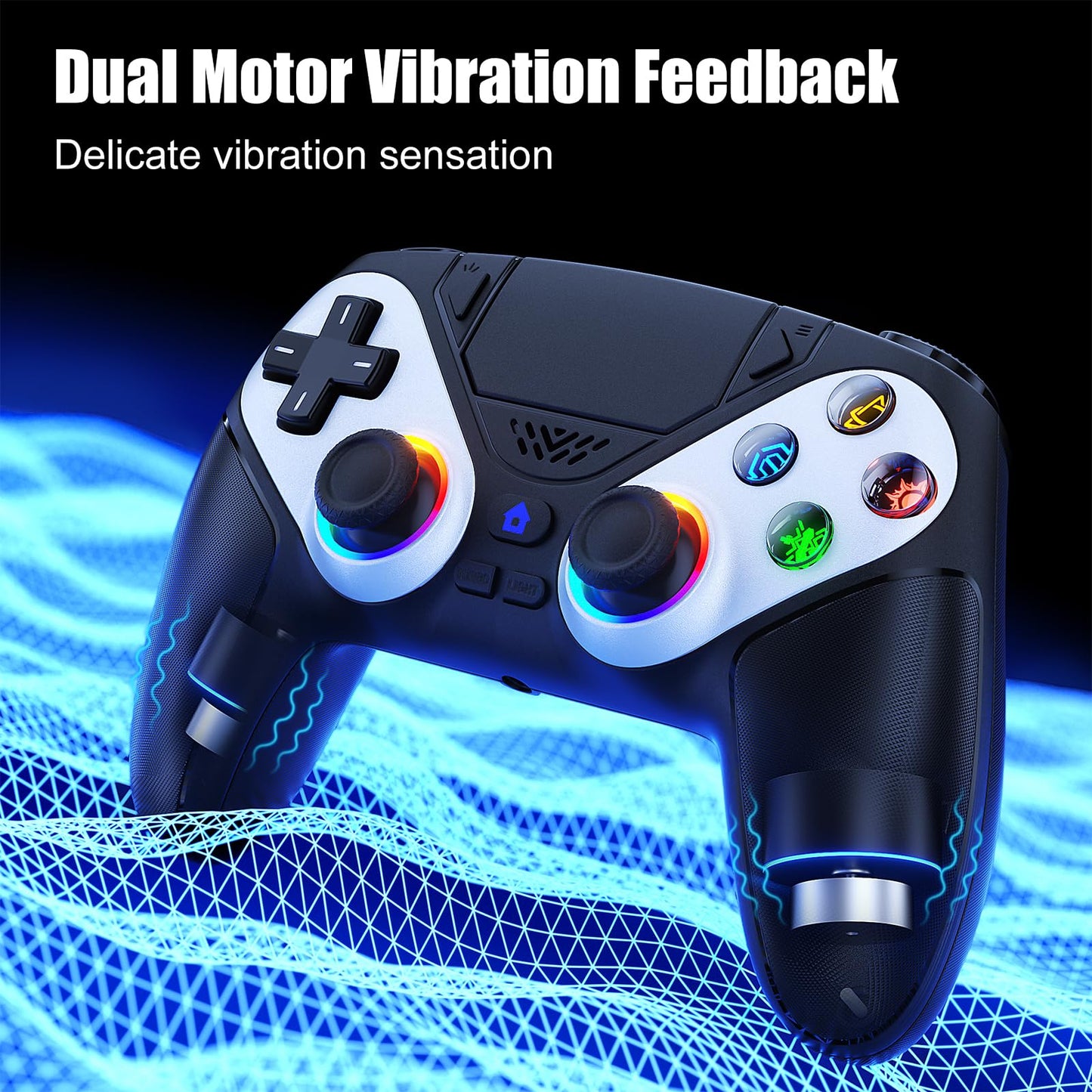
- Q: What type of gaming experience does the dual vibration function provide? A: The dual vibration function enhances immersion. It works in conjunction with the high-precision six-axis gyroscope for better feedback.
- Q: What is the joystick design like on this controller? A: The controller has upgraded high-precision joysticks. They effectively reduce the joystick dead zone, enhancing gameplay accuracy.
- Q: Can I use an external microphone with this controller? A: Yes, you can use an external headset for microphone functions. The controller itself does not have a microphone.
- Q: What should I do if my controller isn't connecting? A: Ensure you are using the correct USB-C data cable and try reconnecting. If issues persist, refer to the user manual.
- Q: How do I clean and maintain the controller? A: Use a soft, dry cloth to clean the controller. Avoid using liquids directly on it for optimal maintenance.
- Q: Is this controller safe for children? A: Yes, it is safe for children, provided they are supervised while using it. Always adhere to gaming guidelines for age-appropriate content.
- Q: Does the controller come with a warranty? A: Yes, it typically comes with a manufacturer's warranty. Check the product details for specific warranty terms.