


AceGamer Wireless PS4 Controllers - Non-Slip Grip, 2 USB-C Cables, White (2 Pack)
AceGamer Wireless PS4 Controllers - Non-Slip Grip, 2 USB-C Cables, White (2 Pack)
Out of stock
Couldn't load pickup availability
Guarantee safe checkout

Sold by Gamex24, an authorized reseller.
Returns accepted within 30 days | support@gamex24.com
Shipping Information
- Free Standard Shipping — United States only
- Processing Time: 1–3 business days
- Estimated Delivery: 3–5 business days after dispatch
- Securely packed to ensure your purchase arrives in perfect condition
- Tracking number sent via email once dispatched
- Orders over $250 require signature upon delivery. Taxes calculated at checkout.
Returns & Refund
Returns accepted within 30 days of delivery.
Damaged or Defective Item
Free return shipping + replacement or full refund
Wrong Item Received
Free return shipping + replacement or full refund
Change of Mind
Return shipping at customer's expense · Item must be unused & in original packaging
Safety & Compliance
California Proposition 65 Warning
Some products sold on this website may expose you to chemicals known to the State of California to cause cancer, birth defects, or other reproductive harm.
www.P65Warnings.ca.govGeneral Product Safety Advisory
Always read the product label, instructions, and safety warnings before use. Do not use damaged or modified products. Store products in appropriate conditions as specified by the manufacturer.
Keep all products out of reach of children unless specifically designed for their use.
Product Authenticity & Notice
All products sold by Gamex24 are 100% authentic, sourced directly from authorized brand distributors. Product colors and dimensions may vary slightly from images due to screen calibration and manufacturing tolerances.
Gamex24 — Play. Compete. Repeat.


Description
Frequently Asked Questions
- Q: What is the model number of the AceGamer controllers? A: The model number is AceGamer. This identifier helps in tracking compatibility and warranty services.
- Q: What colors are available for the AceGamer controllers? A: The controllers come in a white color. This sleek design complements various gaming setups.
- Q: What is included in the AceGamer controller package? A: The package includes two AceGamer controllers, two charging cables, and two user manuals. This ensures you have everything needed for immediate use.
- Q: How do I connect the AceGamer controllers to my PS4? A: To connect, use a USB cable for the first pairing. After initial setup, you can connect wirelessly via Bluetooth.
- Q: Can I use the AceGamer controllers on a PC? A: Yes, the controllers are compatible with Windows PCs. However, a receiver is required for wired connections.
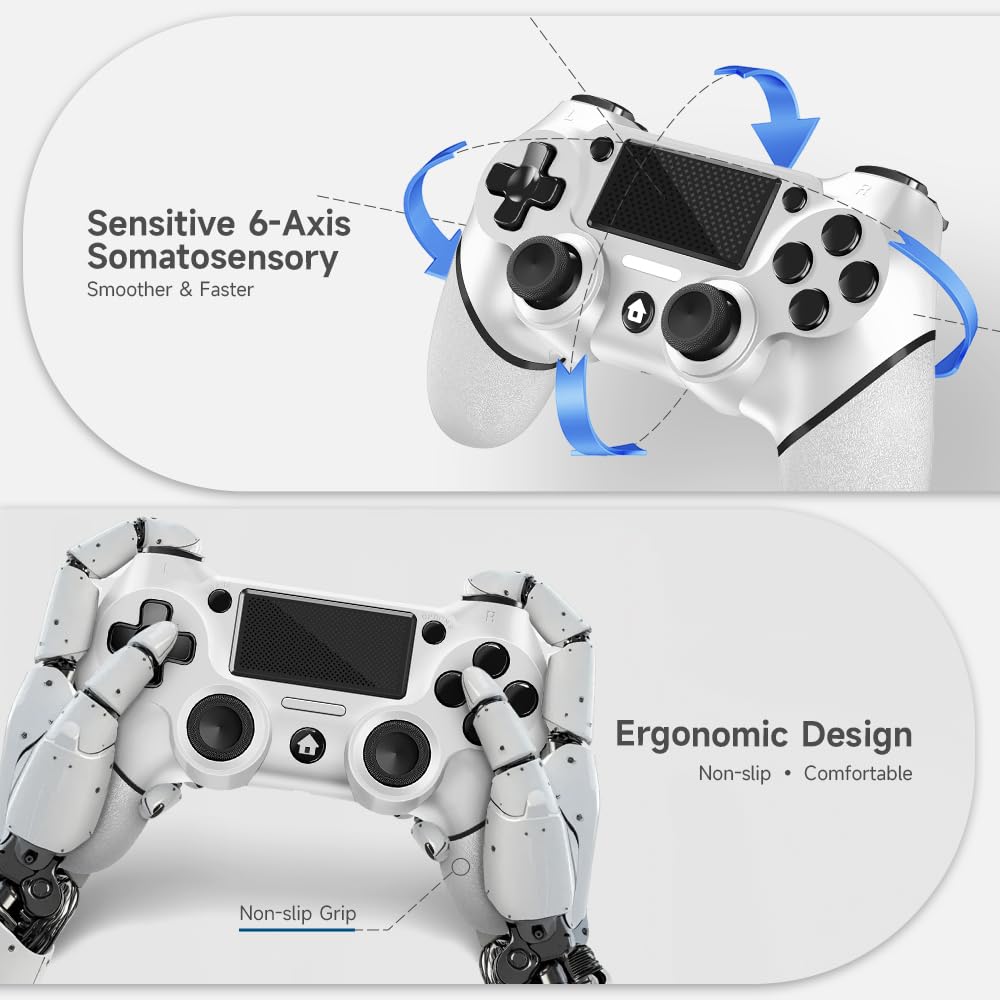
- Q: What special features do the AceGamer controllers have? A: They feature 360° refined analog sticks, a touch pad, and built-in six-axis gyro sensors. These enhance control and responsiveness during gameplay.
- Q: Are the AceGamer controllers suitable for all ages? A: Yes, these controllers can be used by gamers of all ages. The ergonomic design makes them comfortable for extended play sessions.
- Q: How do I customize the turbo settings on the AceGamer controllers? A: To customize turbo settings, hold the 'share' key and select the desired button. You can then adjust the turbo frequency using the joystick.
- Q: What should I do if my AceGamer controller is not connecting? A: First, ensure the controller is charged and the USB cable is correctly connected for initial pairing. If issues persist, refer to the user manual.
- Q: Do the AceGamer controllers come with a warranty? A: Yes, they typically come with a warranty. Check the package or the manufacturer’s website for specific details.
- Q: How do I clean my AceGamer controllers? A: Use a soft, dry cloth to gently wipe the surface. Avoid using harsh chemicals to maintain the integrity of the materials.
- Q: Is there a risk of the AceGamer controllers overheating? A: No, there is minimal risk of overheating during normal use. Ensure proper ventilation while gaming to enhance performance.
- Q: Can the AceGamer controllers be used for competitive gaming? A: Yes, they are designed for competitive gaming with features like rapid response buttons and refined analog sticks.
- Q: How long does the battery last on the AceGamer controllers? A: Battery life varies with usage, but typically lasts several hours on a full charge. It's recommended to charge them after extensive play.
- Q: What type of charging cable do the AceGamer controllers use? A: They use USB-C charging cables. This allows for fast charging and compatibility with many modern devices.